
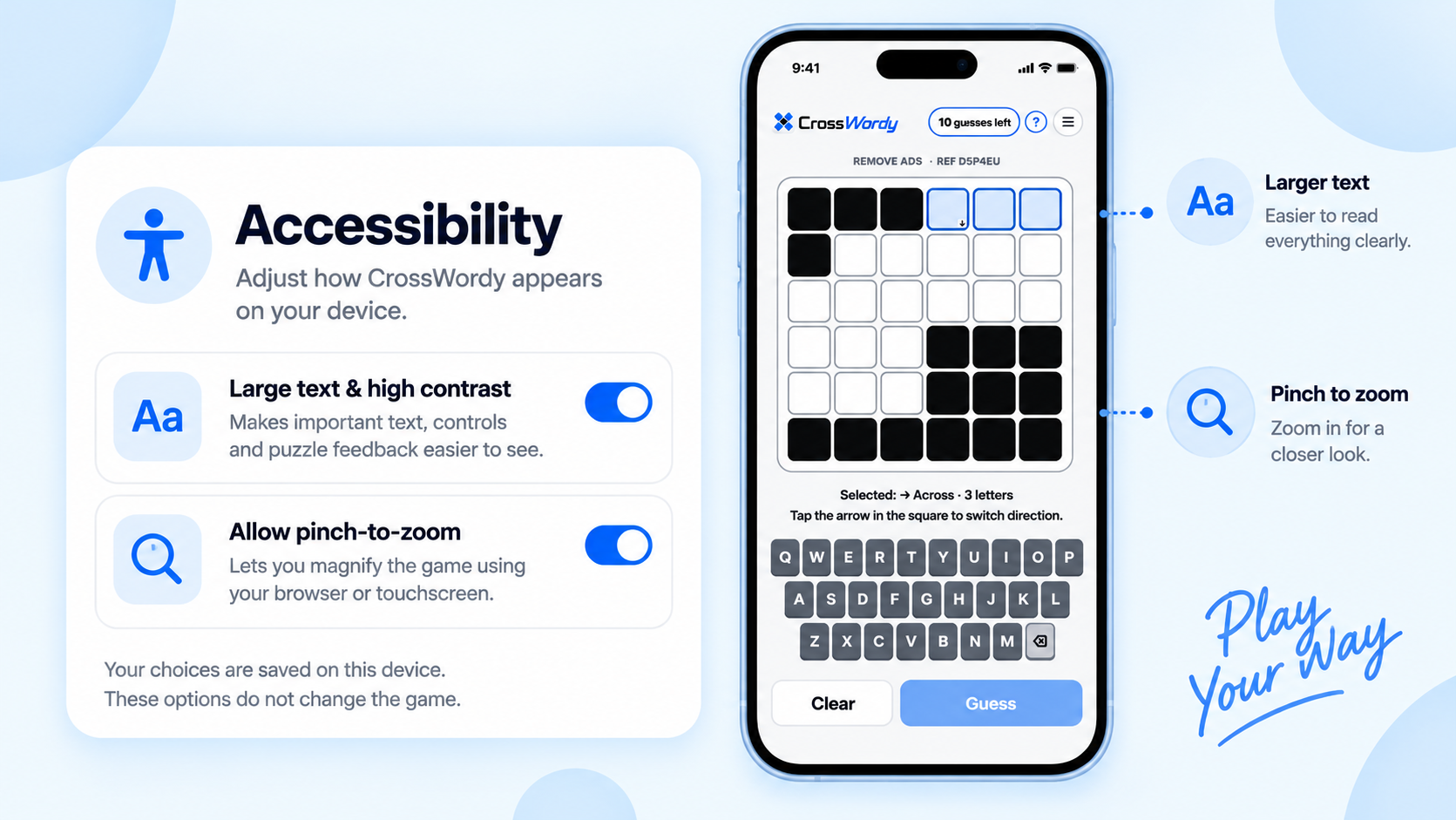
CrossWordy includes accessibility options that let you adjust how the game appears on your device.
These settings do not change the puzzle or the way CrossWordy works. They simply make the game easier to see and use in the way that suits you best.
Where to find Accessibility
Open the Game Menu and choose Accessibility.
From there, you can change the display options available on your device.
Large text & high contrast
Turn on Large text & high contrast to make important text, controls and puzzle feedback easier to see.
This can help if you prefer stronger visual contrast or find larger interface elements more comfortable to use.
The setting changes the presentation of CrossWordy, but does not alter the puzzle itself or make the game easier or harder.
Allow pinch-to-zoom
Turn on Allow pinch-to-zoom if you want to magnify the game using your browser or touchscreen.
On a phone or tablet, this lets you use the familiar pinch gesture to zoom in for a closer look at the grid, controls or other parts of the game.
It can be particularly useful on smaller screens or whenever you want to inspect part of the puzzle more closely.
Your choices are saved on this device
Your accessibility settings are saved on the device where you make them.
This means you can set up CrossWordy differently on different devices if that works better for you.
For example, you might prefer the standard display on a desktop computer but use larger text or zoom on your phone.
Accessibility does not change the game
These options are purely about presentation.
They do not change:
- the words in the puzzle
- the difficulty level
- your number of guesses
- your Player Skill score
- your Win Streak
You can therefore adjust the display without affecting your progress or results.
Play CrossWordy your way
CrossWordy is designed to be played across phones, tablets and desktop computers, and different screens can benefit from different settings.
Accessibility options give you more control over how the game looks while keeping the same puzzle experience underneath.
Want to adjust your display?
Open Game Menu > Accessibility and choose the options that work best for you.